How to Install
Roadmap https://github.com/users/cGIfl300/projects/4
OpenSource Bible Reading Tool
Import XML Bible
Setup_GUI is working with a desktop only, no CLI. This is the main Setup Tool you’ll need.
Once you cloned this repository using:
git clone https://github.com/cgifl300/pybible.git
You will also dl a directory containing all Bible in all language. You should considere removing the Bibles you won’t use from ./data/xml
secret_garden.py
This is the main setup file, you can switch language into english from there, just open a text editor to change the language of the software. (en = english) You can also change the color theme from this file. Most options can be edited from Setup_GUI.py
Setup_GUI
This script must be used to generate the database and to init setup.
Source Code Install
Under linux with GUI. You can also do the same under windows, but I do not use this operating system, you will perhaps have to adapt some commands (you cannot directly use makefiles on windows).
Clone this repository
git clone https://github.com/cgifl300/pybible.git
Go into pybible:
cd pybible
Rebuild the virtualenv:
make init
Launch the initial setup:
make setup
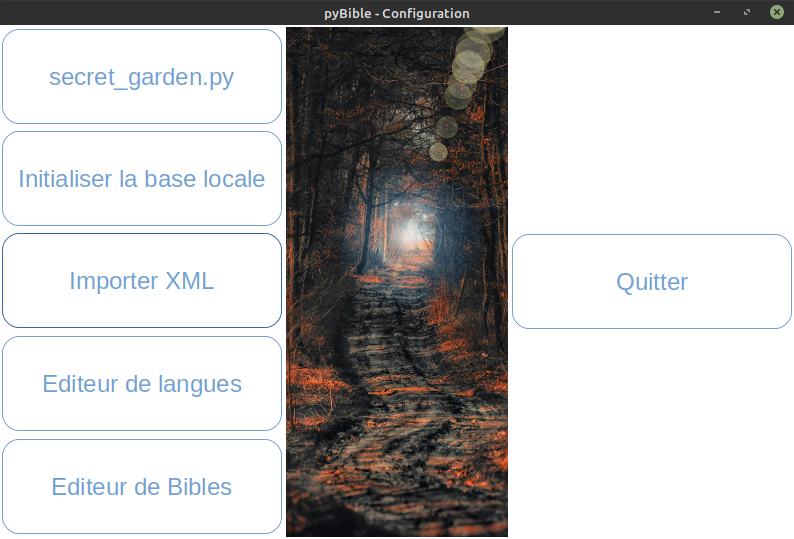
Setup interface should be now opened (Setup_GUI is not translated):
You can delete useless Bibles in data/xml .
You can dl all Bibles in a single database at https://blueroses.fr/pybible/dl/pybible.db . If you choose this method just click on “secret_garden.py”.
For those who choosed to create their own database, once the path of the database is defined into secret-garden.py you can click on “initialiser la base locale” whatever your database is sqlite or mysql.
Import XML
Import XML take much time, you should considere using a pre-built database at https://blueroses.fr/pybible/dl/pybible.db .
XML Import imports all XML Bibles from data/xml .
Meanwhile, Setup_GUI is frozen, you have to wait few hours… let’s have a drink!
Language Editor
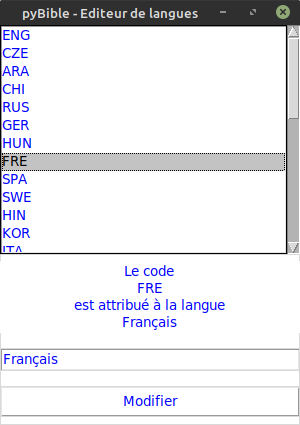
The language editor permits to change the definition of languages shortcuts and litteral strings. Exemple: FRE -> Français
Bibles Editor
Bible Editor permits to edit differents books names into Bibles and their shortcut.
You can use templates you can create from the setup interface.
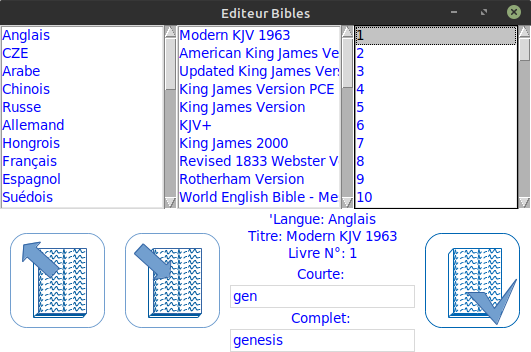
You can edit long and shortcut names. Don’t forget to validate your changes.
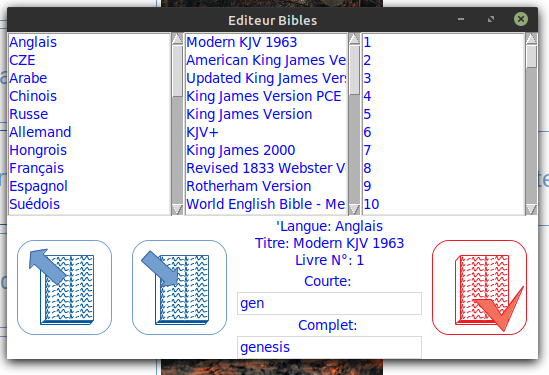
Once a template is ready, you can “export” it clicking on “export”.
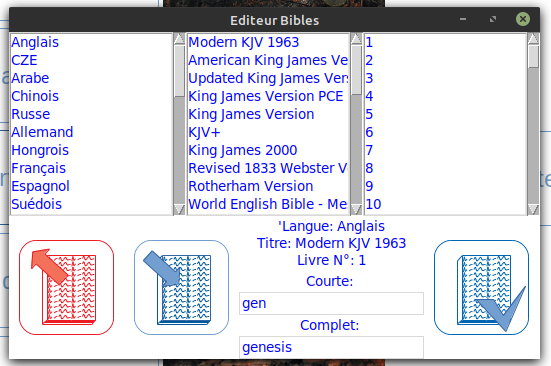
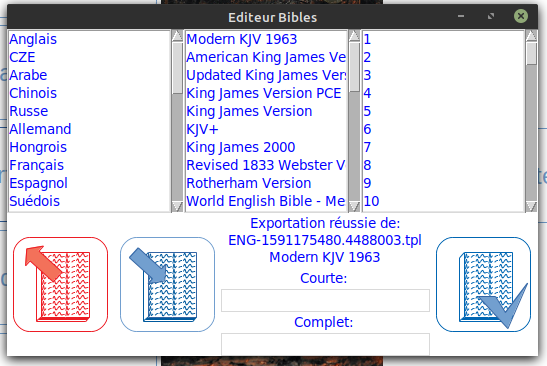
To apply a template, just click on “import”.
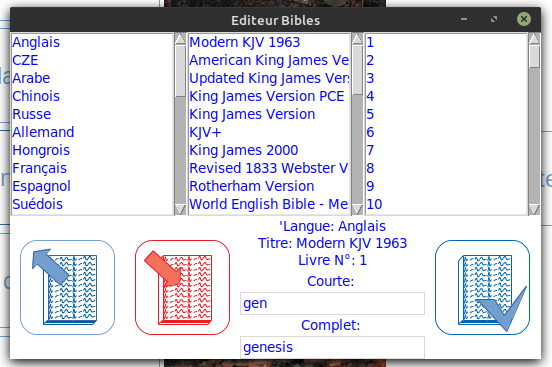
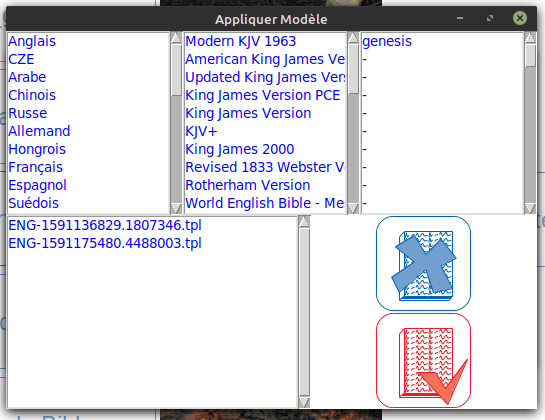
Import GUI will now open. You can check your templates here.
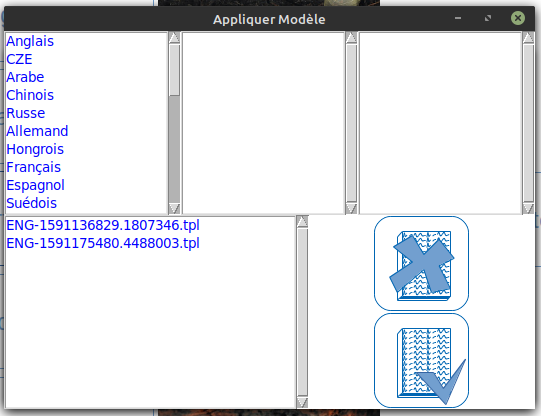
Select a Bible on wich you want to apply the template. Actual books names will be printed.
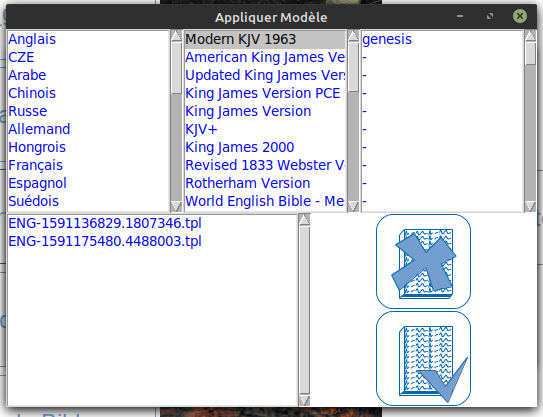
You can cancel anytime clicking on “cancel”.
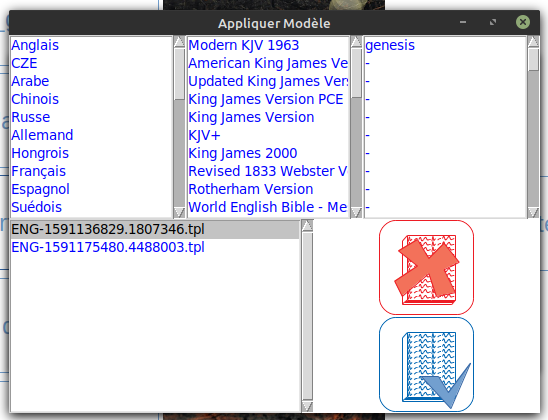
Once you Bible and template are selected, just validate clicking on “validate”. The new books names is applyed.